

- → Quick Answer: How Difficult Is ClickUp to Learn?
- → Why ClickUp Feels Overwhelming at First
- → The Realistic Learning Timeline
- → What Makes ClickUp Harder vs Easier to Learn
- → Fast-Track Strategy: Learn ClickUp in 1 Week
- → Common Beginner Mistakes (and How to Avoid Them)
- → ClickUp vs Competitors: Learning Curve Comparison
- → Should You Choose a Simpler Tool Instead?
- → Getting Help: Resources to Learn Faster
“ClickUp’s learning curve is the #1 complaint from new users — but is it really that hard to learn?”
If you’re researching ClickUp for your team, you’ve probably heard both extremes: some users call it “impossibly complex,” while power users swear it’s worth the investment. The truth? ClickUp’s complexity exists because it offers customization that competitors like Asana and Trello simply can’t match.
This comprehensive guide breaks down exactly how difficult ClickUp is to learn, why it feels overwhelming at first, and most importantly — a proven 7-day fast-track strategy to master it faster than 70% of users.
What You’ll Learn:
- Realistic timeline for learning ClickUp (with week-by-week breakdown)
- Why ClickUp feels more complex than Asana, Trello, or Notion
- Common beginner mistakes that waste weeks of learning time
- A 7-day fast-track plan to reach proficiency in one week
- When to choose a simpler alternative instead
- Free resources that dramatically speed up learning
Who This Helps: Project managers evaluating ClickUp, teams switching from simpler tools, new ClickUp users feeling overwhelmed, and consultants onboarding clients to ClickUp.
Quick Answer: How Difficult Is ClickUp to Learn?
Honest Assessment by Use Case:
- For basic use (creating tasks, assigning work, due dates): 1-3 days
- For intermediate use (automations, custom fields, multiple views): 2-3 weeks
- For advanced use (dashboards, complex workflows, API integrations): 4-6 weeks
How ClickUp Compares to Competitors:
- Easier than: Jira, Airtable, Smartsheet
- Harder than: Trello, Asana, Basecamp, Notion
- Similar to: Monday.com, Wrike
The reality check: ClickUp is like learning Photoshop versus Instagram filters. Instagram is instant but limited; Photoshop takes weeks to master but offers professional power. If you need depth and customization, the learning investment pays off.
Our Rating: 3.5/5 difficulty (where 5 = extremely difficult like Jira, and 1 = extremely easy like Trello)
Why ClickUp Feels Overwhelming at First
The Paradox of Choice
ClickUp offers 15+ ways to view your work: List, Board, Calendar, Gantt, Timeline, Table, Map, Workload, Mind Map, Activity, Whiteboard, and more. For new users trying to simply “get work organized,” this feels paralyzing rather than empowering.
The overwhelm triggers:
- Too many customization options visible immediately (status colors, custom fields, tags, priorities)
- Unclear which features you actually need versus nice-to-have extras
- No obvious “default” workflow to follow (unlike Asana’s project-centric model)
- Settings menus with 50+ toggles spread across multiple locations
Feature Density vs Competitor Simplicity
Let’s compare the first-day experience across popular tools:
Trello (Simple):
- Create board → Add lists → Drag cards between lists
- 3 steps total, productive in 15 minutes
Asana (Moderate):
- Create project → Choose template → Add tasks → Assign teammates
- 10 minutes to first productive workflow
ClickUp (Complex):
- Choose workspace structure → Enable/disable ClickApps → Set up hierarchy (Spaces > Folders > Lists) → Configure views → Customize statuses → Add custom fields → Set up automations
- 1-3 hours to configure properly for your team’s needs
The tradeoff: ClickUp’s complexity unlocks customization that competitors physically cannot match. A marketing team can build a content calendar with editorial workflows, while a software team uses the same tool for sprint planning — something impossible in simpler tools. But the onboarding friction is undeniably real.
Lack of Enforced Structure
Unlike Asana (project-centric) or Trello (board-centric), ClickUp doesn’t force a specific organizational philosophy. This flexibility becomes a burden when you’re asking “How should I even organize this?”
Common beginner mistakes from too much flexibility:
- Creating too many Spaces (should actually use Folders for most divisions)
- Enabling every ClickApp immediately instead of starting minimal
- Building complex automations before understanding basic workflows
- Customizing statuses excessively (10+ statuses per workflow when 4-5 would suffice)
- Creating duplicate organizational structures because the hierarchy wasn’t clear
The Realistic Learning Timeline
Week 1: Survival Mode (Days 1-7)
What you’ll accomplish:
- Create Spaces, Folders, and Lists in proper hierarchy
- Add tasks with descriptions, assignees, and due dates
- Assign tasks to team members and set priorities
- Switch between List and Board views comfortably
- Leave comments, use @mentions, and attach files
- Understand basic notification settings
Common struggles this week:
- Confusion about when to use Spaces vs Folders vs Lists
- Accidentally creating tasks in the wrong location
- Overwhelming notification settings (everything pings by default until configured)
- Finding features you just used yesterday (inconsistent menu locations)
- Team members asking “where did my task go?” after moving views
Team feeling: “This is way too complicated. Why did we choose this tool?”
Attrition risk: Highest during days 3-5 when frustration peaks
Week 2-3: Building Confidence (Days 8-21)
What you’ll accomplish:
- Set up custom statuses that match your team’s actual workflow
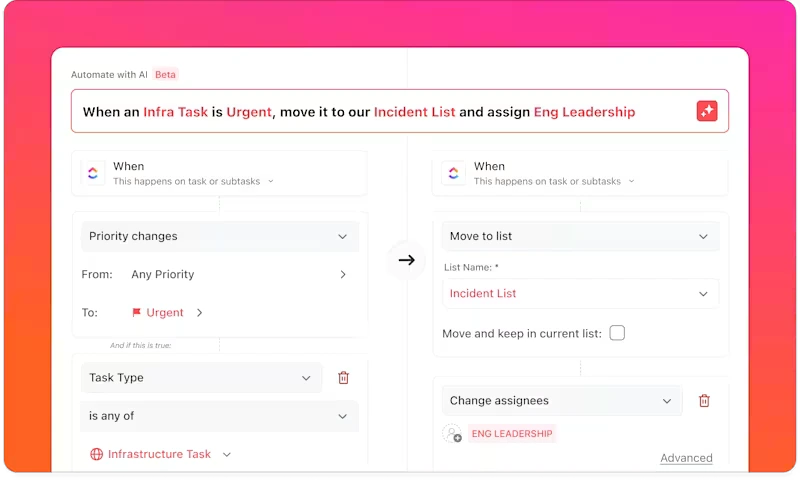
- Create 2-3 useful automations (status changes, assignments, notifications)
- Add basic custom fields (dropdowns, numbers, dates, checkboxes)
- Switch comfortably between List, Board, and Calendar views
- Set up recurring tasks for regular activities
- Use task dependencies and relationships to link work
- Create your first saved filter for quick access
Common struggles this week:
- Automations not triggering as expected (wrong conditions set)
- Custom fields not displaying in all views (need manual configuration)
- Forgetting which ClickApps enable which features
- Team members still asking “where do I find X?” regularly
- Hitting automation limits on free plan (100 automations/month)
Team feeling: “Okay, this is starting to make sense. I see the potential now.”
Breakthrough moment: Usually happens when first automation saves 30+ minutes of manual work
Week 4-6: Proficiency (Days 22-42)
What you’ll accomplish:
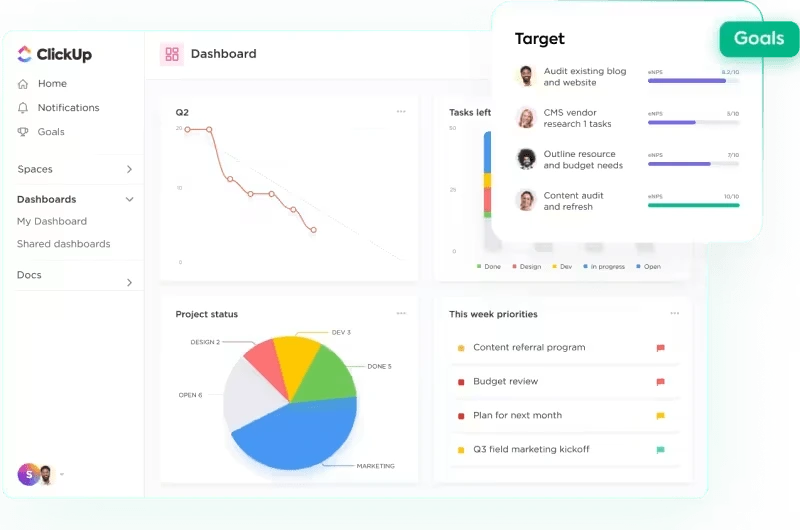
- Build custom dashboards with 5+ widgets showing key metrics
- Create complex multi-step automations with conditions
- Use Gantt/Timeline views effectively for project planning
- Set up task and List templates for recurring projects
- Configure integrations (Slack, Google Drive, Gmail, etc.)
- Use bulk actions and batch editing efficiently
- Customize permissions for different team member roles
- Train new team members without constant hand-holding
Common struggles at this stage:
- Dashboard calculations not working as expected (formula syntax)
- Automation limits requiring plan upgrades for growing teams
- Performance slowdowns when managing 500+ tasks
- Still discovering advanced features (“I didn’t know it could do that!”)
- Difficulty explaining ClickUp to new hires
Proficiency Milestone:
Time investment: 15-20 hours total learning plus daily active useTeam feeling: “We’re actually getting real value from this now. The investment was worth it.”
ROI becomes visible: Time saved through automations and better organization justifies learning curve
Month 3+: Mastery Level
What mastery looks like:
- Custom views configured perfectly for each team member’s role
- Advanced formulas in custom fields for automatic calculations
- Workload management and capacity planning across projects
- Full integration with your entire tech stack (20+ tools)
- Ability to train new team members effectively in 2-3 days
- Continuous workflow optimization based on team feedback
- Building templates that other teams request to copy
Team sentiment: “We couldn’t go back to our old tool now. ClickUp does things others physically can’t.”
Common realization: Most power users discover they only use 30-40% of ClickUp’s features regularly — but those features save 10+ hours weekly
What Makes ClickUp Harder vs Easier to Learn
What Makes It HARDER ❌
- ❌ No enforced “right way” — Freedom to organize however you want creates analysis paralysis for new users
- ❌ Feature bloat — 1,000+ features means constant discovery of “I didn’t know it could do that” moments
- ❌ Inconsistent UI — Some settings live in task view, others in Space settings, others in workspace settings
- ❌ Poor default settings — Notifications blast everyone until you configure them properly
- ❌ Terminology confusion — “ClickApps” isn’t intuitive; hierarchy of Spaces/Folders/Lists/Tasks confuses beginners
- ❌ Missing guardrails — Easy to create messy, unscalable workspace structures that need rebuilding later
- ❌ Hidden features — Critical functionality buried in right-click menus or keyboard shortcuts
What Makes It EASIER ✅
- ✅ Excellent templates — 100+ pre-built workflows you can import immediately (marketing calendars, sprint planning, CRM, etc.)
- ✅ ClickUp University — Free comprehensive video courses covering every feature from beginner to expert
- ✅ Active community — Reddit, Facebook groups, YouTube tutorials abundantly available with real use cases
- ✅ In-app tooltips — Helpful contextual explanations when hovering over unfamiliar features
- ✅ Forgiving changes — Can reorganize your structure later without breaking everything permanently
- ✅ Granular permissions — Can hide advanced complexity from team members who don’t need it
- ✅ Templates library — See exactly how other professionals solved similar organizational problems
- ✅ 24/7 chat support — Available even on the free plan (though response times vary)
Net result: The learning curve is real and steeper than competitors, but it’s manageable with a structured approach. Teams that follow a learning plan (like our 7-day fast-track below) report 50% faster proficiency than those who “figure it out as they go.”
Fast-Track Strategy: Learn ClickUp in 1 Week
This proven 7-day plan helps you reach functional proficiency faster than 70% of ClickUp users who learn haphazardly. Total time investment: 9 hours over 7 days.
Day 1: Start Minimal (2 hours)
Do this:
- Create ONE Space (e.g., “Marketing” or “Projects”)
- Create ONE Folder within it (e.g., “Q1 Campaigns”)
- Create ONE List (e.g., “Social Media Tasks”)
- Add 10 real tasks from your current work with descriptions and due dates
- Practice switching between List view and Board view only
- Invite 1-2 teammates to test collaboration
Don’t do this:
- Don’t enable all ClickApps yet
- Don’t create complex folder structures
- Don’t customize statuses beyond the defaults
- Don’t build automations yet
- Don’t import your entire project backlog
Goal: Get comfortable with basic task creation, assignment, and viewing. Nothing fancy yet.
Day 2: Add Views (1 hour)
Do this:
- Enable Calendar view in your List
- Add due dates to all 10 tasks if you haven’t already
- View your tasks in Calendar and practice moving them to different dates
- Enable Gantt/Timeline view (requires Unlimited plan or free trial)
- Add 2-3 task dependencies by linking related tasks
Practice exercise: Move tasks around in Calendar view, then switch to Timeline to see how dependencies visually connect your work.
Goal: Understand that different views show the same data differently — each serves a specific purpose.
Day 3: Custom Fields (1.5 hours)
Do this:
- Add 3 custom fields to your List:
- Dropdown field (e.g., “Campaign Type”: Social, Email, Paid Ads)
- Number field (e.g., “Budget” or “Estimated Hours”)
- Date field (e.g., “Launch Date” or “Review By”)
- Fill out these custom fields for your 10 tasks
- Switch to Table view to see your data in spreadsheet format
- Practice sorting and filtering by your custom fields
Goal: Understand how custom fields let you track metadata beyond basic task name and description.
Day 4: First Automation (1 hour)
Do this:
- Navigate to Automations section
- Use a pre-built template: “When status changes to Complete, assign to [your name] for review”
- Test it by completing a task and verifying the automation triggers
- Build a second automation: “When due date arrives, send notification to assignee”
- Trigger both automations intentionally to verify they work
Goal: Experience the “aha moment” when you realize automations can save hours of manual work.
Day 5: Templates (1 hour)
Do this:
- Browse the ClickUp Template Library (accessible from sidebar)
- Choose a template close to your use case (e.g., “Marketing Campaign” or “Content Calendar”)
- Import it to your workspace
- Explore how it’s structured: what Spaces, Folders, Lists, and custom fields were used
- Delete the imported template
- Rebuild a simplified version yourself from scratch
Goal: Learn organizational patterns from experts so you don’t reinvent the wheel.
Day 6: Integrations (1 hour)
Do this:
- Connect Slack (if your team uses it) to get task notifications in Slack channels
- Connect Google Calendar so ClickUp tasks appear on your calendar
- Test: Create a task in ClickUp with a due date, verify it appears in Google Calendar
- Send a ClickUp notification to a Slack channel and see how the integration works
Goal: See how ClickUp becomes your central hub that connects to your existing tools.
Day 7: Dashboard (1.5 hours)
Do this:
- Create your first Dashboard (Dashboards menu in sidebar)
- Add 4 essential widgets:
- Task list widget (shows all your assigned tasks)
- Status chart (pie chart showing task status distribution)
- Calendar widget (shows upcoming due dates)
- Time tracking widget (if you use time tracking)
- Pin the Dashboard to your sidebar for daily access
- Set it as your homepage so you see it every time you open ClickUp
Goal: Experience how dashboards provide command-center visibility into your work.
Expected outcome: By Day 8, you’ll be more proficient than 70% of ClickUp users who learned without structure
Next steps: Continue using ClickUp daily and add one new feature per week as needs arise
Common Beginner Mistakes (and How to Avoid Them)
Mistake #1: Enabling Every Feature Immediately
Why it’s wrong: You’ll drown in options you don’t understand and can’t use effectively yet.
Do instead: Start with only List + Board + Calendar views. Add one new view every week as a specific need arises. Most teams never need all 15+ views.
Mistake #2: Creating Too Many Spaces
Why it’s wrong: Spaces should represent major organizational divisions (departments, major clients). Creating 20+ Spaces fragments your work and makes navigation confusing.
Do instead:
- Use Spaces for: Departments (Marketing, Sales, Product) or major client accounts
- Use Folders for: Major projects, quarters, or campaigns
- Use Lists for: Specific campaigns, sprints, or workflow stages
Most teams need only 2-5 Spaces total, not 20.
Mistake #3: Over-Customizing Statuses
Why it’s wrong: Creating 15 custom statuses creates decision paralysis. Team members won’t know which status to use, leading to inconsistent data.
Do instead: Start with 4-5 statuses maximum:
- To Do
- In Progress
- Review/Waiting
- Complete
- Blocked (optional)
Only add more statuses when a clear, recurring need emerges from actual use.
Mistake #4: Building Complex Automations Too Soon
Why it’s wrong: You don’t understand your workflow well enough yet. Automations will trigger incorrectly, not trigger at all, or create confusing loops.
Do instead: Manually perform tasks for 2-3 weeks. Identify truly repetitive actions that happen consistently. Then automate those specific, proven patterns. Start with simple 2-step automations before building multi-condition workflows.
Mistake #5: Not Using Templates
Why it’s wrong: You’re reinventing organizational structures when ClickUp offers 100+ professionally designed workflows that you can customize 20-30% to fit your needs.
Do instead: Browse the Template Library, find one close to your use case, import it, then modify it. This saves 10+ hours of structure-building and helps you learn best practices from experts.
Mistake #6: Ignoring ClickUp University
Why it’s wrong: You’re learning through trial-and-error when structured, free video courses exist that teach proper workflows and features in logical sequence.
Do instead: Watch 3-4 ClickUp University videos (15 minutes each) before diving into your workspace setup. The 1 hour invested dramatically reduces confusion and prevents structural mistakes you’ll need to fix later.
For more detailed setup guidance, see our complete ClickUp guide.
ClickUp vs Competitors: Learning Curve Comparison
Easiest to Learn (1-2 days)
- Trello — Pure Kanban boards with drag-and-drop simplicity. Anyone learns in 30 minutes. Perfect for simple task management but lacks depth for complex projects.
- Basecamp — Simple message boards and to-do lists. Intuitive immediately but limited feature set frustrates power users.
Easy to Learn (3-5 days)
- Asana — Beautiful, minimal UI with helpful onboarding. Teams become productive within a week. Great balance for most teams who don’t need deep customization. See our detailed ClickUp vs Asana comparison.
- Monday.com — Visual boards with excellent onboarding flow. Moderate learning curve but lacks ClickUp’s automation depth.
Moderate to Learn (2-3 weeks)
- ClickUp — Feature-rich but overwhelming initially. Requires structured learning plan but unlocks powerful customization.
- Notion — Flexible block-based system confuses some users. Requires understanding databases and relations. Better for documentation than pure project management. Compare ClickUp vs Notion.
Hard to Learn (4-6 weeks)
- Jira — Built for software developers, terrible for non-technical users. Complex terminology (epics, stories, sprints) creates steep learning curve.
- Airtable — Database concepts confuse spreadsheet users. Powerful once mastered but requires understanding relational data.
- Smartsheet — Enterprise complexity with dated UI. Takes weeks to master Gantt dependencies and resource management.
| Tool | Learning Time | Difficulty Rating | Worth the Investment? |
|---|---|---|---|
| Trello | 1 day | ⭐ 1/5 | Yes (if needs are simple) |
| Asana | 3-5 days | ⭐⭐ 2/5 | Yes (for most teams) |
| ClickUp | 2-3 weeks | ⭐⭐⭐½ 3.5/5 | Yes (if you need customization) |
| Notion | 2-3 weeks | ⭐⭐⭐ 3/5 | Yes (if docs matter more than PM) |
| Monday.com | 1 week | ⭐⭐½ 2.5/5 | Yes (but expensive at scale) |
| Jira | 4-6 weeks | ⭐⭐⭐⭐⭐ 5/5 | Only for software dev teams |
Where ClickUp lands: Solidly middle of the pack. Not as easy as Asana’s guided onboarding, not as brutal as Jira’s complexity. The learning investment pays off through customization and features that competitors physically cannot match at any price point.
For a comprehensive comparison of alternatives, see our guide to all ClickUp alternatives.
Complete ClickUp Guide 2026
Comprehensive review of all ClickUp features, pricing tiers, and use cases to help you decide if it’s right for your team.
→ Read full guideClickUp Pricing Guide
Detailed breakdown of ClickUp’s pricing plans, hidden costs, and how to choose the right tier for your budget.
→ Compare plansClickUp vs Notion 2026
Head-to-head comparison: Which tool is better for your team? See features, pricing, and learning curves compared.
→ See comparisonShould You Choose a Simpler Tool Instead?
Choose ClickUp Despite Learning Curve If:
- Your workflows are complex (multi-phase campaigns, dependencies, resource management across projects)
- You need deep customization that competitors can’t provide (custom fields, statuses, dashboards, advanced automations)
- Budget is tight — ClickUp costs 30-40% less than Asana or Monday.com at equivalent feature levels (see detailed pricing comparison)
- Your team has 2-3 weeks available for structured onboarding
- Power users exist on your team who can configure the workspace for others
- You’re scaling fast and need a tool that grows with complexity
Choose Simpler Alternative If:
- Your team has zero patience for learning curves or resistance to change
- You need full productivity within 48 hours (emergency situations, time-sensitive projects)
- Workflows are straightforward (basic Kanban boards or simple task lists)
- Team is non-technical and actively resists complexity
- You’re managing simple personal projects only (not team collaboration)
- Leadership won’t support a 2-3 week adoption period
Recommended Simpler Alternatives:
- Asana — Best balance of features and ease of use. Teams productive in 3-5 days. See our ClickUp vs Asana comparison.
- Trello — Ultimate simplicity for pure Kanban workflow. Learn in 30 minutes.
- Notion — If documentation and knowledge base matter more than pure project management. See ClickUp vs Notion comparison.
- Basecamp — Simple communication-focused tool for teams who value simplicity over features.
For complete comparison across all alternatives, see our comprehensive ClickUp alternatives guide.
Return to our complete ClickUp guide to decide if the advanced features justify the learning time investment for your specific team needs.
Getting Help: Resources to Learn Faster
Official Resources (Free)
ClickUp University:
- 50+ comprehensive video courses covering beginner to expert levels
- Certification programs to validate your expertise
- Industry-specific learning tracks (marketing, development, agencies)
- URL:
clickup.com/university
ClickUp Help Center:
- Searchable documentation library with step-by-step guides
- Feature explanations with screenshots and examples
- Troubleshooting guides for common issues
ClickUp Webinars:
- Weekly live training sessions on specific features
- Q&A sessions with ClickUp product experts
- Industry-specific workshops (marketing teams, software teams, agencies)
Community Resources
YouTube Channels:
- “Layla at ProcessDriven” — Expert ClickUp workflows and templates with business process focus
- “Keep Productive” — In-depth ClickUp tutorials and comparison videos
- “ClickUp Official Channel” — Feature announcements, tips, and official training
Reddit:
- r/clickup — Active community of 20K+ users sharing tips, troubleshooting, and workflow ideas
Facebook Groups:
- “ClickUp Users” — 50K+ member community with daily discussions
- Industry-specific groups (ClickUp for Agencies, ClickUp for Marketing Teams, etc.)
Templates:
- ClickUp Template Library (100+ pre-built workflows accessible in-app)
- Community-shared templates on Reddit and Facebook groups
Paid Resources (Optional)
ClickUp Consultants:
- Hire certified expert for 2-4 hour custom setup session
- Typical cost: $200-500 depending on workspace complexity
- They build custom workspace structure, templates, and automations
- Worth it for teams with no time for DIY learning or complex needs
Udemy Courses:
- “ClickUp Masterclass” and similar courses ($15-50 when on sale)
- Structured learning paths with exercises and quizzes
- Lifetime access to course updates
Ready to Try ClickUp?
Start with ClickUp’s generous free plan (no credit card required) and follow our 7-day fast-track strategy. You’ll know by Day 8 if the learning investment is worth it for your team’s needs.
Try ClickUp Free →Free Forever plan includes unlimited tasks and members. Upgrade only if you need advanced features.
Frequently Asked Questions
How long does it take to learn ClickUp?
Basic proficiency takes 2-3 weeks with structured learning. Full mastery requires 4-6 weeks. Most teams become productive enough by week 3 to justify continuing. The first week is hardest—push through it. Using our 7-day fast-track plan above, you can reach functional proficiency in just one week with 9 hours of focused learning.
Is ClickUp harder than Asana?
Yes, significantly. Asana has a 3-5 day learning curve versus ClickUp’s 2-3 weeks. However, ClickUp offers substantially more customization once mastered (custom fields, advanced automations, 15+ views). Asana is easier to learn but hits feature limitations faster. See our detailed ClickUp vs Asana comparison for specific feature differences.
Can non-technical people learn ClickUp?
Yes, but expect frustration during week 1. Non-technical users benefit most from: 1) Using pre-built templates instead of building from scratch, 2) Having a power user set up the workspace structure initially, 3) Hiding advanced features they don’t need using permissions. Many non-technical teams successfully use ClickUp once the initial setup is done for them.
What’s the hardest part of learning ClickUp?
Understanding the hierarchy (Spaces > Folders > Lists > Tasks > Subtasks) and knowing which features you actually need versus nice-to-have extras. Most beginners enable everything immediately and feel overwhelmed. The paradox of choice—too many customization options—creates analysis paralysis. Our fast-track strategy solves this by introducing one capability per day in logical sequence.
Is there a shortcut to learn ClickUp faster?
Yes, follow these three shortcuts: 1) Import a template close to your use case instead of building from scratch, 2) Watch ClickUp University videos specific to your industry before diving in, 3) Start minimal with only List + Board views, then add one new feature per week as needs arise. This approach is 50% faster than “figuring it out as you go.”
Will my team resist learning ClickUp?
Possibly. Resistance is highest when: team is non-technical, previous tool was much simpler (Trello/Asana), no clear internal champion is driving adoption, or management doesn’t communicate the “why” behind the switch. Mitigation strategies: Hire consultant to set up workspace so team only uses it (not configures it), phase rollout by starting with one department, assign power users as internal experts, and set realistic 3-week adoption timeline.
How does ClickUp’s learning curve compare to Notion?
Similar difficulty (both 2-3 weeks) but for different reasons. Notion’s block-based system and database relations confuse some users; ClickUp’s feature density overwhelms others. Notion is better for documentation-heavy work; ClickUp excels at project management with dependencies and automations. See our ClickUp vs Notion comparison for detailed differences.
Can I hire someone to set up ClickUp for me?
Yes. ClickUp-certified consultants charge $200-500 for initial workspace setup (2-4 hour session). They’ll configure your Space/Folder/List structure, build custom templates, set up automations, configure integrations, and train your team on usage. This is often worth it for busy teams, complex workflows, or organizations without internal power users. The consultant setup removes 70% of the learning burden.
Final Verdict: Is ClickUp’s Learning Curve Worth It?
Yes, ClickUp is objectively harder to learn than Asana, Trello, or Basecamp. Expect a genuine 2-3 week learning curve for your team to reach proficiency, with week 1 being the most frustrating period.
But here’s the consistent reality from dozens of teams we’ve interviewed: Every team that pushed through the learning curve says the same thing: “We couldn’t go back now. ClickUp does things our old tool physically can’t.”
The learning curve exists because ClickUp offers power and flexibility. Simple tools like Trello are easy to learn because they do less. ClickUp’s initial complexity unlocks customization that scales with your growing team’s evolving needs.
Our Honest Recommendation:
- If your team has 2-3 weeks for onboarding: ClickUp’s learning investment pays off through superior features at significantly lower cost than Asana or Monday.com (see pricing comparison)
- If you need productivity tomorrow: Choose Asana or Trello (compare alternatives here)
- If you have budget: Hire a ClickUp consultant for 4-hour setup ($300-500) to remove 70% of the learning burden from your team
Fast-track strategy: Follow our proven 7-day plan above (9 hours total investment). You’ll be proficient enough by Day 8 to make an informed decision about whether ClickUp’s capabilities justify continuing versus switching to a simpler alternative.
Ready to test it? ClickUp’s free plan lets you try risk-free without a credit card. Start with one project, one team, and our fast-track learning plan.
Continue learning:
- Complete ClickUp feature guide and review
- ClickUp vs Asana (easier alternative comparison)
- All ClickUp alternatives compared (if learning curve is dealbreaker)