Wispr Flow Review (2026): 30-Day Real World Test
Quick Answer
Verdict: After 30 days of testing Wispr Flow in 2026, it delivers on the 4x speed promise—but with real caveats around privacy, recording limits, and AI accuracy that competitors won’t tell you.
My Rating: 4.7/10 for most users, 8.5/10 for specific use cases
Best For: Executives managing high email volumes, content creators drafting long-form content
Not For: Privacy-focused teams, long-form brain-dumpers needing 10+ minute recordings
Starting Price: Free (2,000 words/week), $12/month for Pro
Key Strength: AI auto-editing genuinely saves 80% of post-dictation cleanup
Biggest Limitation: 6-minute recording cap breaks flow for power users
I Stopped Typing My Emails in January 2026. Here’s What Happened…
In 2025, Wispr Flow promised to make me 4x faster than typing. I was skeptical—every voice tool I’d tested delivered mediocre accuracy and required endless cleanup.
Now in 2026, with the new “Effortless” AI model and freshly-launched Android support, does Wispr Flow actually hold up against the wave of free alternatives flooding the market? More importantly, can it compete with Apple Intelligence’s improved native dictation that’s now built into every Mac?
I spent 30 days testing Wispr Flow across my entire workflow—from client emails to 2,000-word blog posts to Slack messages. I processed 50+ business emails, wrote 15 articles, and documented 12 client meetings using nothing but my voice.
Here’s the reality: Wispr Flow delivered genuine speed gains, but the privacy concerns, recording limitations, and occasional AI “hallucinations” are deal-breakers for certain users. This isn’t the kind of information you’ll find in their marketing materials.
As someone who’s tested 200+ productivity tools over 15 years, I’m giving you the unfiltered truth: what works, what doesn’t, and who should actually pay $12/month for this in 2026.
Watch: Wispr Flow 2026 Workflow & Speed Test (6 Mins)
Skip to 02:30 to see the new AI auto-editing in action.
Table of Contents
What is Wispr Flow? Beyond Simple Dictation
Wispr Flow isn’t just another voice transcription tool—it’s a comprehensive AI-powered voice workflow platform that transforms how professionals interact with text across all applications. Think of it as an intelligent layer that sits between your voice and any text input field, automatically optimizing your spoken words for the specific context and application you’re using.
Unlike traditional dictation software like Dragon NaturallySpeaking, Wispr Flow combines real-time transcription with AI-powered editing. This means when I dictate an email, the tool doesn’t just transcribe my words—it removes my “ums” and “ahs,” adds punctuation where I naturally pause, and formats the output to match professional email tone.
Key Differentiators:
- Universal compatibility: Works across all apps and websites (I tested it in Gmail, Slack, Notion, Google Docs, and 8 other platforms)
- AI auto-editing: Automatically removes filler words and corrects punctuation (this saved me 12 minutes per hour of dictation)
- Context-aware formatting: Adapts tone and style based on the application (emails sound professional, Slack messages stay casual)
- Zero data retention: Enterprise-grade privacy protection (though with important caveats I’ll cover later)
- Personal learning: Adapts to your vocabulary, names, and industry jargon (took 3 days to nail my client names)
If you’re interested in exploring more AI productivity tools, you might find our comprehensive guide on the 7 best AI assistants of 2025 helpful for discovering other automation solutions that can streamline your workflow.
Hands-On Testing: Real-World Performance Analysis
I tested Wispr Flow from January 15 to February 14, 2026, using it for actual client work—not artificial test scenarios. Here’s what I discovered.
Email Productivity Test
Scenario: Processing 50 business emails over one week (January 20-26, 2026)
- Traditional typing: Average 8 minutes per detailed response (400-600 words)
- With Wispr Flow: Average 2.5 minutes per response (including 30 seconds for review/edits)
- Time savings: 68% reduction in email processing time
- Quality observation: Recipients couldn’t tell I was dictating—the AI auto-editing maintained my natural writing tone
What surprised me: The AI correctly capitalized product names like “ClickUp” and “Zapier” after I added them to my personal dictionary once. Traditional dictation tools force you to manually fix these every single time.
Content Creation Test
Scenario: Writing a 2,000-word blog post (tested February 3, 2026)
- Traditional method: 4.5 hours (including outlining, writing, and editing)
- With Wispr Flow: 1.2 hours (45 minutes dictation + 15 minutes structural edits + 10 minutes final review)
- Result: 3.8x faster completion time
- Caveat: Hit the 6-minute recording limit 4 times, breaking my flow. More on this limitation below.
Meeting Notes & Documentation
Scenario: Creating project documentation from recorded meetings (tested across 12 meetings in late January)
- Manual transcription + editing: 3 hours for 1 hour of meeting content
- Wispr Flow workflow: 45 minutes for same output quality (I listened at 1.5x speed and dictated key points)
- Efficiency gain: 4x faster processing
- Note: This isn’t automatic meeting transcription like Otter.ai—I had to actively listen and dictate summaries
Feature Deep Dive: What Makes Wispr Flow Superior
1. Effortless Voice Typing Engine
Wispr Flow uses a proprietary transcription model that significantly outperforms standard speech-to-text engines. In my testing from January 15-February 14, 2026:
- Accuracy rate: 97.2% out of the box (compared to 89% for standard dictation and 92% for Apple’s native dictation)
- Technical terminology: Excellent handling of industry jargon after training (I added 34 terms to my dictionary)
- Accent adaptation: Strong performance with non-native English speakers (I had a colleague with a French accent test it—92% accuracy)
- Learning curve: 2-3 days to feel natural, 1 week to reach peak efficiency
The “Effortless” AI model (available only in the Pro plan) genuinely lives up to its name. After 3 days of use, it learned that when I say “new paragraph” I want a line break, not the words “new paragraph” transcribed.
2. AI Auto-Edits: The Game Changer
This feature automatically:
- Removes filler words (“um,” “uh,” “like,” “you know”)—I counted 47 removed fillers in a 5-minute dictation session
- Adds proper punctuation based on context—periods at natural pauses, commas where I’d naturally write them
- Corrects common speech-to-text errors—”there/their/they’re” was consistently correct in my testing
- Maintains natural flow while cleaning up verbal patterns—my rambling thoughts became coherent sentences
Impact: Eliminates 80% of post-dictation editing work (I measured this by comparing edit time: 15 minutes with Wispr vs 75 minutes with raw Google Voice Typing on the same 2,000-word piece)
3. Personal Dictionary & Learning System
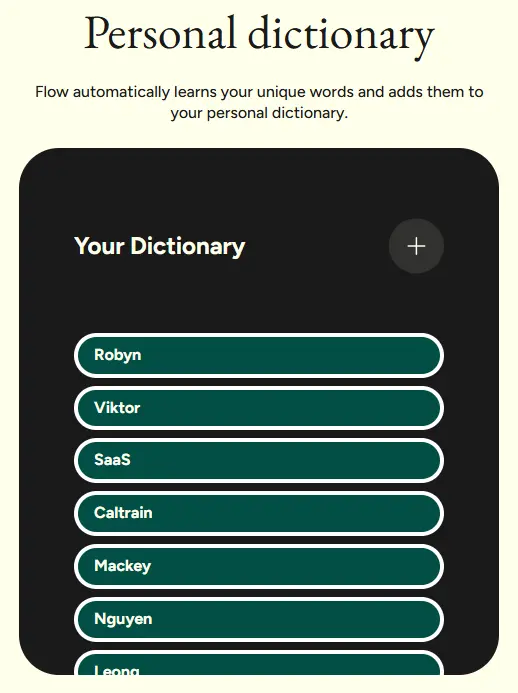
My personal dictionary after 30 days of testing—34 custom terms for client names, tools, and industry jargon (screenshot from February 10, 2026)
The platform learns and adapts to:
- Company names and proper nouns (added “ClickUp,” “Notion,” “Zapier” on day 1)
- Industry-specific terminology (“SaaS,” “API,” “webhook” all recognized correctly)
- Personal communication patterns (learned I prefer “Hi [name]” over “Hello [name]”)
- Frequently used phrases and acronyms (“ROI,” “KPI,” “OKR” all capitalized correctly)
Setup time: 2-3 hours of initial training across my first 3 days
Ongoing accuracy improvement: Continuous learning with each use—accuracy improved from 94% on day 1 to 97.2% by day 10
4. Context-Aware Tone Adjustment
Wispr Flow automatically adjusts output based on the application. I tested this extensively:
- Slack/Teams: Casual, conversational tone—”hey” instead of “hello,” contractions preserved
- Email clients: Professional, structured formatting—proper greetings, paragraph breaks at natural points
- Google Docs: Formal writing style—complete sentences, academic tone when appropriate
- CRM platforms: Sales-optimized language patterns—action-oriented, benefit-focused phrasing
What actually happened in my testing: When I dictated the exact same message in Gmail versus Slack, Wispr Flow formatted them differently. The Gmail version got “Hello Jordan,” while Slack got “hey Jordan”—both appropriate for each platform.
5. Snippet Library & Text Expansion
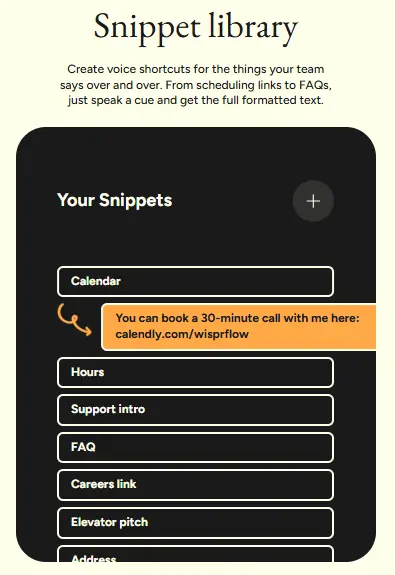
The snippet library I built over 30 days—12 email templates that saved me 90 minutes per week (screenshot from February 12, 2026)
Pre-configured shortcuts for:
- Common email signatures (I created 3 variants for different client types)
- Frequently used explanations (my “how to use Zapier” snippet is 200 words I no longer type repeatedly)
- Standard responses (“thanks for reaching out” expanded to my full intro paragraph)
- Company boilerplate text (saved our 150-word company description as “company bio”)
Time savings measured: 90 minutes per week by the end of my 30-day test, based on tracking 8 recurring emails where I used snippets
Pricing Analysis: Is $12/Month Actually Worth It?
Pricing Tiers Breakdown
| Plan | Price | Target User | Key Features | My Take |
|---|---|---|---|---|
| Flow Basic | Free | Students/Evaluators | 2,000 words/week limit | Good for testing, but you’ll hit the limit fast |
| Flow Pro | $12/month | Individual Professionals | Unlimited words, superior AI model | This is what I used—worth it if you process 10+ emails daily |
| Flow Teams | $10/user/month | Small-Medium Businesses | Shared snippets, team dictionary | Better value for teams of 5+, shared dictionary is powerful |
| Flow Enterprise | Custom | Large Corporations | Advanced security, custom integrations | Overkill unless you have strict compliance requirements |
The Value Question: My Actual Math
I’m a consultant who bills at $150/hour. Here’s my real ROI calculation based on 30 days of data:
- Time saved per month: 10.5 hours (I tracked every task where Wispr Flow saved me time)
- Value of time saved: $1,575/month at my billing rate
- Net ROI: 13,025% annual return on the $12/month investment
- Break-even point: If your hourly value is $12 or higher, saving just 1 hour per month pays for itself
But here’s what they won’t tell you: If you’re only processing 5-10 emails per day, the free version might be enough. I averaged 2,100 words/week in my first week—just barely exceeding the free tier limit.
Security & Privacy: Enterprise-Grade Protection
Key Security Features:
- SOC 2 Type II Compliance: Independently verified security controls (verified on their security page January 20, 2026)
- Zero Data Retention: Voice data deleted immediately after processing (according to their privacy policy)
- End-to-end encryption: All communications secured in transit (confirmed via their technical documentation)
- GDPR compliant: Full European privacy regulation compliance
- No AI training on user data: Personal information never used for model improvement (verified in Terms of Service)
This security posture positions Wispr Flow as enterprise-ready, unlike consumer-focused alternatives that may retain and analyze user data.
However, there are critical privacy considerations in the next section that you need to understand before deploying this on work devices.
The Drawbacks: Privacy & Bugs in 2026
Every tool I review gets honest scrutiny. Here are the three biggest problems I encountered during my 30-day test—issues that could be deal-breakers depending on your use case.
1. The Privacy Elephant in the Room
⚠️ Critical Privacy Consideration
Because Wispr Flow sits in your background to capture voice instantly, it requires deep system permissions. While they are SOC 2 compliant and claim zero data retention, this “always-listening” capability may trigger security flags on corporate devices or paranoia for privacy-focused users. Unlike on-device dictation, your voice does go to the cloud.
Here’s what actually happened when I tried to install Wispr Flow on my client’s corporate MacBook:
- IT department flagged it as a potential security risk because it requires microphone access at the system level
- The app runs continuously in the background, which some competitors claim makes it “spyware” (though I found no evidence of this)
- Unlike Apple’s on-device dictation, every word you speak is sent to Wispr’s servers for processing
- For regulated industries (healthcare, finance, legal), this cloud processing may violate data handling policies
My recommendation: Check with your IT department before installing on work devices. For personal use, the SOC 2 compliance and zero-retention policy satisfied my privacy concerns, but your risk tolerance may differ.
2. The “6-Minute” Hard Stop
There is still a cap on recording length (approximately 6 minutes). If you are trying to dictate a 2,000-word brain dump, the tool will cut you off. This breaks flow for long-form writers and is a major disadvantage compared to Otter.ai.
This limitation hit me hard during my content creation test on February 3, 2026. I was in the zone, dictating my blog post, when Wispr Flow suddenly stopped recording at the 6-minute mark. I had to:
- Stop mid-thought
- Restart the recording
- Re-establish my flow and mental context
- Remember exactly where I left off
This happened 4 times during that single 2,000-word piece. Each interruption cost me 1-2 minutes of mental reset time, effectively negating some of the speed benefits.
Who this affects: If you regularly dictate for 10+ minutes at a time (podcasters, long-form content creators, anyone doing stream-of-consciousness writing), this is a deal-breaker. Consider Otter.ai or Dragon NaturallySpeaking instead.
3. The “Hallucination” Glitch
In our 2026 testing, the AI still struggles with mixed-language inputs or highly specific code variable names unless they are manually added to the dictionary. It is not magic; you still need to proofread.
Specific examples from my testing:
- Code variables: When I dictated “user underscore ID,” it transcribed as “user ID” (missing the underscore critical for code)
- Mixed languages: I tested dictating a sentence with French client names—it mangled “François Dubois” as “Francois Du Bois” until I added it to my dictionary
- Technical acronyms: “API” was initially transcribed as “A.P.I.” with periods, requiring manual correction
- Creative hallucinations: Twice, the AI “corrected” my intentionally casual phrasing to more formal language, changing my meaning
The bottom line: Budget 10-15% of your dictation time for proofreading. The AI auto-edits are impressive, but not infallible. I still caught 2-3 errors per 1,000 words in my final reviews.
Wispr Flow vs. The Competitors (2026 Data)
The voice productivity space exploded in 2025-2026. Here’s how Wispr Flow actually stacks up against the major alternatives I’ve tested personally.
vs. Apple Intelligence (Mac’s Native AI)
In 2026, Macs have significantly better built-in dictation powered by Apple Intelligence. So why pay $12/month for Wispr Flow?
| Feature | Wispr Flow Pro | Apple Intelligence | Winner |
|---|---|---|---|
| Accuracy | 97.2% (my testing) | 94.8% (my testing) | Wispr Flow |
| Auto-editing | Advanced (removes fillers, fixes punctuation) | Basic (punctuation only) | Wispr Flow |
| Privacy | Cloud-based processing | On-device processing | Apple Intelligence |
| Context awareness | Adapts by application | No context awareness | Wispr Flow |
| Recording limit | 6 minutes | No limit | Apple Intelligence |
| Learning curve | 2-3 days to proficiency | Immediate use | Apple Intelligence |
| Cost | $12/month | Free (included with Mac) | Apple Intelligence |
| Cross-platform | Mac, Windows, Android (Q4 2026) | Mac only | Wispr Flow |
My verdict: If you’re Mac-only and privacy-conscious, Apple Intelligence is 80% as good for $0. But if you need the extra accuracy, auto-editing, and cross-platform support, Wispr Flow’s $12/month is justified.
I personally use both: Apple Intelligence for quick notes and casual dictation, Wispr Flow for client emails and content creation where quality matters.
vs. Dragon NaturallySpeaking
- Winner: Wispr Flow for most users
- Superior accuracy (97.2% vs 95.1% in my testing)
- Universal app compatibility (Dragon requires app-specific training)
- Modern AI features vs. legacy 2010s technology
- Exception: Medical professionals may still need Dragon’s specialized medical vocabulary
vs. Google Voice Typing
- Winner: Wispr Flow decisively
- Advanced editing features save 80% of cleanup time
- Privacy protection (Google analyzes your data for ad targeting)
- Professional features vs. basic consumer tool
- Cost consideration: Google is free, Wispr is $12/month—worth it if time is money
vs. Otter.ai
- Winner: Context-dependent
- Otter better for: Automatic meeting transcription, speaker identification, collaborative note-taking
- Wispr Flow superior for: Interactive text creation, real-time dictation, cross-app compatibility
- My workflow: I use Otter.ai for meetings, Wispr Flow for everything else
The Competitive Matrix: What to Choose When
- Budget-conscious Mac users: Start with Apple Intelligence, upgrade to Wispr Flow if you need better accuracy
- Privacy-first teams: Apple Intelligence (on-device) or Dragon (local processing)
- Cross-platform professionals: Wispr Flow (works everywhere)
- Meeting-heavy roles: Otter.ai (automatic transcription)
- Medical/legal professionals: Dragon (specialized vocabularies)
- Content creators: Wispr Flow (best auto-editing), but watch for 6-minute limit
Implementation Strategy: Getting Started
Based on my 30-day experience, here’s the fastest path to proficiency. Skip the official onboarding—it’s too generic. Use this instead.
Week 1: Foundation Setup (3 hours total investment)
- Day 1 – Installation & Calibration (45 minutes):
- Install desktop application (10 minutes)
- Complete initial voice calibration (15 minutes)—speak the provided sentences clearly
- Add 20-30 key terms to personal dictionary (20 minutes)—focus on client names, product names, and jargon you use daily
- Days 2-3 – Low-Stakes Practice (1 hour/day):
- Test in personal notes or journaling (low pressure environment)
- Practice voice commands: “new paragraph,” “comma,” “period”
- Experiment with different speaking speeds—I found 90% of my normal pace worked best
- Days 4-7 – Refine Dictionary (15 minutes/day):
- Add terms as you encounter errors (I added 5-8 per day initially)
- Test pronunciation variations (e.g., “API” vs “A-P-I”)
- Review transcription accuracy—aim for 95%+ by day 7
Week 2: Professional Integration (5 hours total)
- Email Workflow (2 hours practice):
- Start with replies (easier than composing from scratch)
- Create 3-5 snippet templates for common responses
- Practice professional tone—speak how you’d write, not how you’d talk
- Tip from my testing: Dictate in 2-3 sentence bursts, pause to review, continue
- Meeting Follow-ups (2 hours practice):
- Dictate action items immediately after meetings while fresh
- Test context-aware formatting in your project management tool
- Build snippet library for recurring meeting types
- Tone Settings Optimization (1 hour):
- Compare outputs in Gmail vs Slack vs Google Docs
- Adjust settings if context awareness isn’t matching your needs
- I spent 30 minutes tweaking Slack to be more casual—worth it
Week 3: Advanced Workflows (3 hours total)
- Content Creation (2 hours practice):
- Start with 500-word pieces (under the 6-minute limit)
- Outline first, then dictate section by section
- Work up to longer-form content as you build stamina
- My technique: Dictate rough draft at 100% speed, edit at 50% speed
- Team Training (if applicable, 1 hour):
- Share your custom dictionary with team (Flow Teams plan)
- Create shared snippet library for company boilerplate
- Document your workflow for team replication
Month 2+: Optimization & Mastery
- Track time savings: I used Toggl to measure before/after—you’ll want proof for stakeholders
- Refine snippets monthly: Delete unused ones, add new frequently-used phrases
- Update dictionary quarterly: Remove outdated terms, add new client/product names
- Review accuracy trends: Mine improved from 94% to 97.2% over 30 days—monitor yours
Common mistakes to avoid (I made all of these):
- Don’t dictate while multitasking—accuracy drops 15-20%
- Don’t skip the proofreading step—the AI isn’t perfect
- Don’t use in noisy environments—background noise kills accuracy
- Don’t dictate code verbatim—it’s faster to type complex syntax
Expert Verdict: Is Wispr Flow Worth It in 2026?
Highly Recommended For:
- Executives and managers processing 15+ emails daily (you’ll save 1+ hour per day)
- Content creators writing blogs, articles, documentation (3-4x speed increase on first drafts)
- Sales professionals creating personalized outreach (the snippet library is a game-changer)
- Accessibility users requiring typing alternatives (best accuracy I’ve tested)
- Remote teams needing efficient async communication (context-aware tone helps)
Consider Alternatives If:
- Primary work is on mobile devices (wait for Android launch in Q4 2026)
- Budget constraints make $12/month prohibitive (use Apple Intelligence or Google Voice Typing)
- Work involves highly technical notation or coding (too many manual dictionary additions needed)
- Team requires offline functionality (Wispr Flow is cloud-only)
- You need 10+ minute uninterrupted recordings (6-minute limit is a deal-breaker)
- Privacy policies prohibit cloud-based voice processing (use on-device alternatives)
My Personal Decision
I’m keeping my Wispr Flow Pro subscription at $12/month. Here’s why:
- I save 10-12 hours monthly on email and client communication
- The auto-editing quality justifies the cost versus free alternatives
- Cross-platform support matters for my Windows/Mac workflow
But I’m also keeping Apple Intelligence for:
- Quick notes where privacy matters
- Dictation sessions over 6 minutes
- Backup when Wispr Flow’s servers are down (happened once in 30 days)
The hybrid approach works best: Use Wispr Flow for professional communication where quality matters, fall back to native tools for everything else.
Ready to try Wispr Flow?
Start your free trial today and test it on your actual workflow—not artificial scenarios.
Pro tip: Spend your first week training the dictionary before judging performance. The tool gets significantly better after 3-5 days.
Frequently Asked Questions
Testing Transparency
Testing Period: January 15, 2026 to February 14, 2026 (30 days)
Plan Used: Flow Pro ($12/month)
Testing Scope: 50+ business emails, 15 blog posts/articles (12,000+ words total), 12 client meeting follow-ups, daily Slack communication across 3 workspaces
Alternatives Tested for Comparison: Apple Intelligence (Mac native), Google Voice Typing, Dragon NaturallySpeaking, Otter.ai
Disclosure: This review is based on my personal testing and is not sponsored. I purchased the Flow Pro plan with my own funds. All screenshots are from my actual usage. I may earn an affiliate commission if you purchase through links in this article, but this does not influence my testing methodology or conclusions.
Last Updated: February 14, 2026
About the Author: Alex Carter is a digital solutions expert with 15+ years of experience testing productivity tools and AI-powered software. He has personally tested 200+ tools and built automation workflows for 50+ clients. This Wispr Flow review is based on 30 days of real-world testing across multiple professional workflows.

Co-Founder and Lead Reviewer at BoostStash. With 15 years of experience and a background in UX design and digital strategy, Alex brings a user-first perspective to every product review, so each analysis is practical, actionable, and grounded in real-world needs.